RCWeb Soundboard
The RCWeb Soundboard (app/soundboard) is a shared room sound effects board. It is designed for phones, tablets, laptops, kiosks, or shared displays where any participant in the same RCWeb room can trigger sounds for everyone.
Screenshot
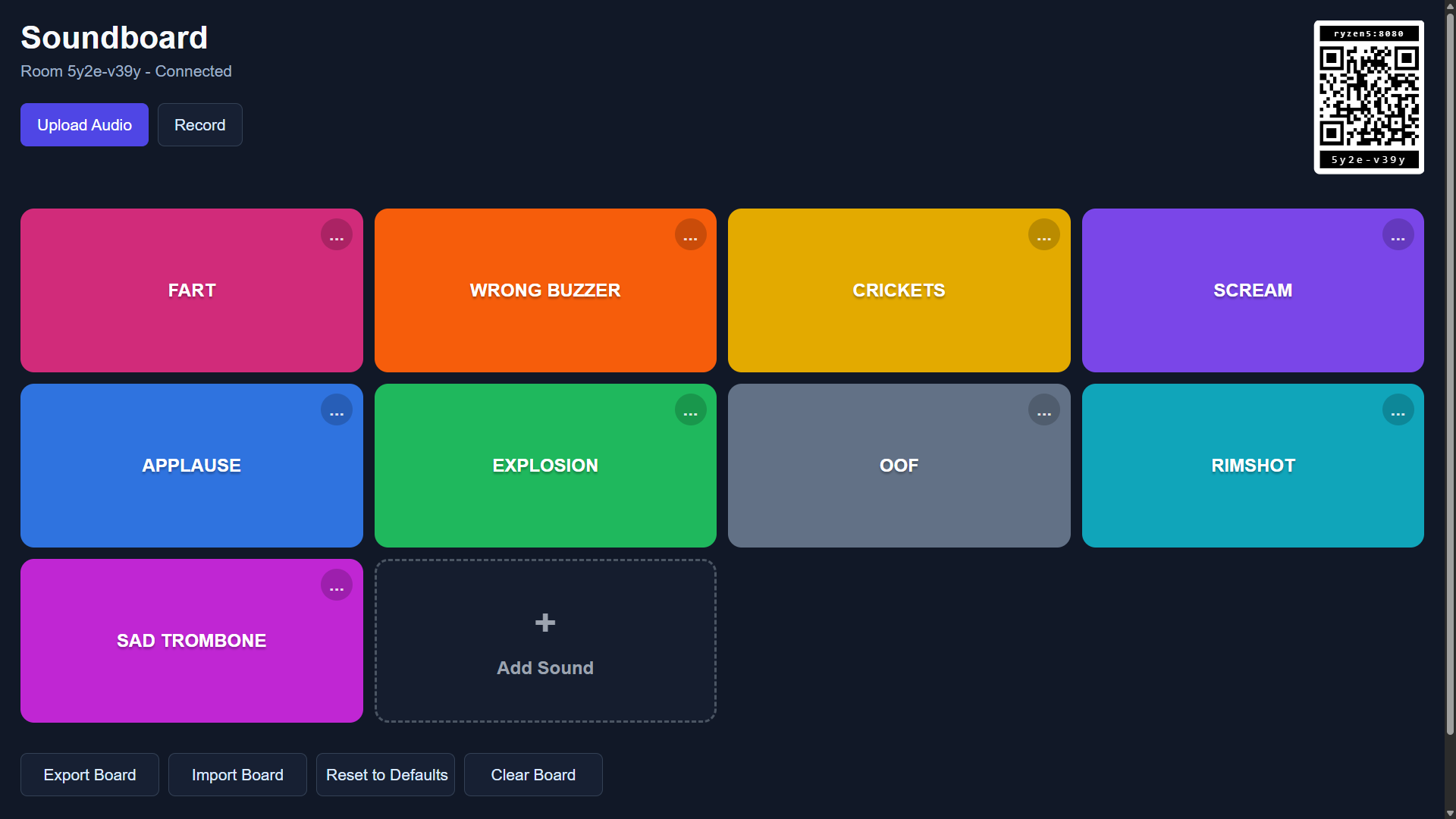
The soundboard includes local mute controls, room broadcasting status and a shareable room link below the sound buttons.
Smartphone layout
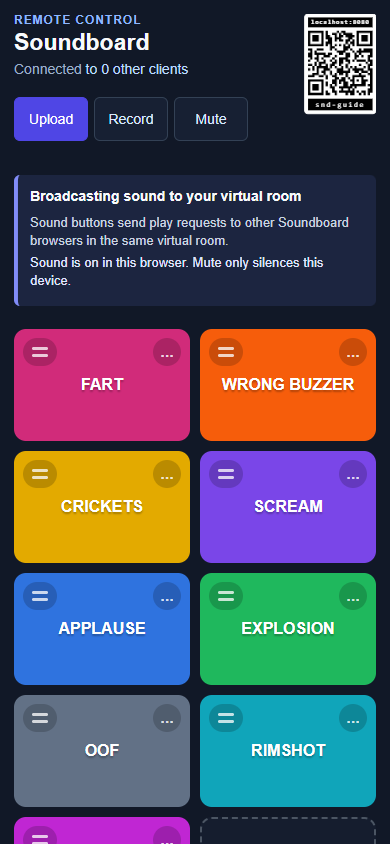
On a phone, sound buttons sit in two columns, with instructions and room-link sharing below.
Overview
Soundboard turns each browser in a room into the same set of large sound effect buttons. Pressing a sound button on one device broadcasts a play command to every open soundboard app in that room, so all connected browsers attempt to play the same effect.
The app includes bundled sound effects, supports adding new audio files, and can record microphone audio directly in the browser. Added sounds become new buttons on the board and are shared with other room members while the source browser remains open.
How to use
- Open
/soundboard/in a browser. - Scan the QR code in the top-right corner, or use Copy room link at the bottom and share it to open the same room on another device. The link includes your room ID.
- Tap any sound effect button to play it on every
soundboardapp in the room. - Use Upload to add local audio files as new sound buttons.
- Use Record to capture a short sound from the microphone and add it to the board.
- Use each button's
...menu to rename or remove a sound. - Use Reset to Defaults to restore the bundled sound set, or Clear Board to remove all buttons.
If the browser blocks audio playback, tap anywhere on that browser once. Browsers usually require a local user gesture before remote audio commands can produce sound.
Mute silences only the current browser. Sound buttons still send play requests to other Soundboard tabs in the same room, respond visually when pressed, and briefly light up the mute button. This lets you use a silent phone to control sound on another screen. Each receiving browser must enable audio and remain unmuted.
The broadcasting panel shows whether you are connected and whether this browser is muted. While disconnected, presses are not sent or saved for later playback; reconnect and press again. Use Explore other RCWeb Apps and Games at the bottom to browse the app collection.
Features
- Large touch-friendly sound effect buttons.
- Plays sound commands across every
soundboardclient in the same room. - Shows a per-button playback progress bar for longer effects.
- Bundles common reaction sounds such as applause, rimshot, sad trombone, wrong buzzer, crickets, scream, explosion, oof, and fart.
- Supports uploaded audio files as new sound buttons.
- Supports microphone recording as new sound buttons.
- Allows renaming and removing any sound, including bundled defaults.
- Shows an in-app confirmation modal before removing a sound.
- Exports and imports board state as JSON.
- Shows unavailable sounds with a faded button and error marker when audio cannot be loaded or played.
- Keeps the QR code visible for quickly adding more controllers or players to the room.
Join the same soundboard
Every participant uses the same Soundboard app. Open the same /soundboard/?r=<room> URL on every device that should trigger or hear sounds.
Sharing and availability
Keep the browser that added or recorded a sound open while others use it. Closing or refreshing it can make that sound unavailable. A faded button and error marker show a local loading or playback problem.
New arrivals can receive the current board from people already connected. Adding, renaming, removing, clearing, resetting or importing changes the board for the room. Playback timing can differ between devices.