Human Override
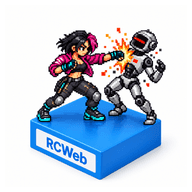
The robots have taken over. Grab your friends, choose a fighter and take back the streets in this cooperative arcade brawler for one to six players.
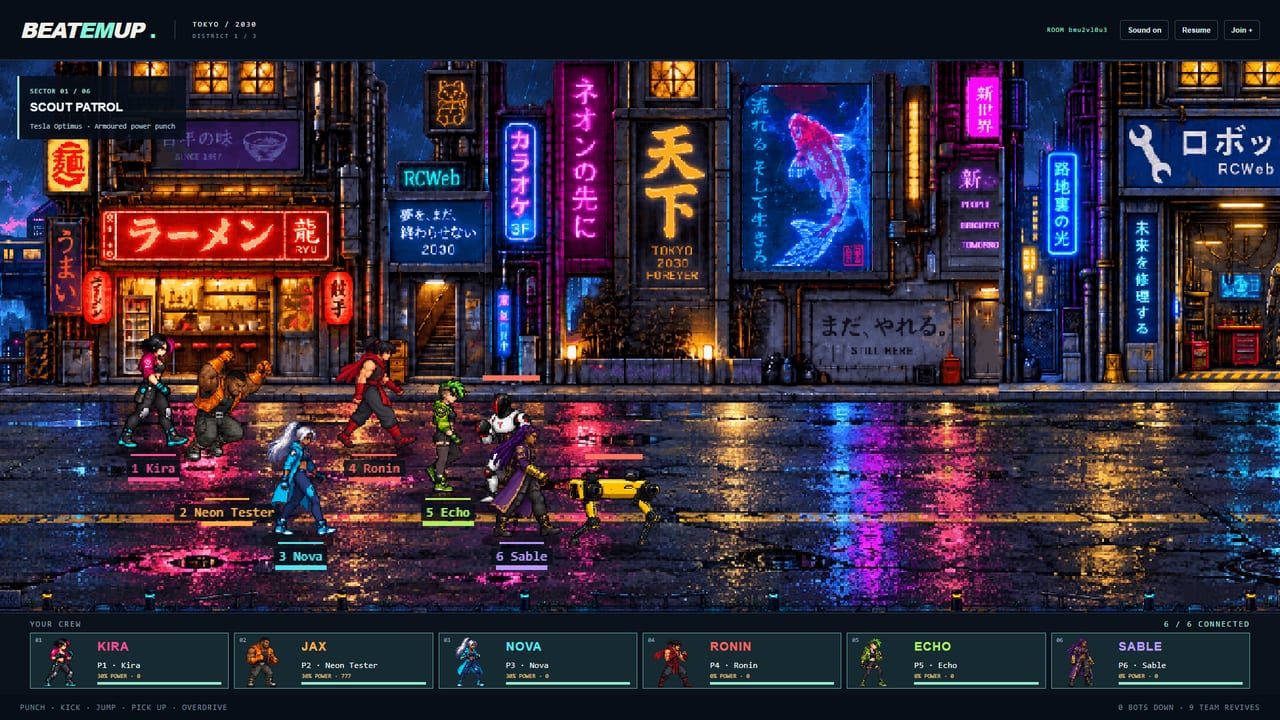
Start your first game
- Open BeatEmUp from the room's app picker on your main screen.
- Join the same RCWeb room on each phone. Scan the QR invitation shown on the main screen during the intro, or open BeatEmUp Control in the same room.
- Choose an available fighter and enter your name.
- Tap Start Human Override on any joined controller.
- Click through the short comic, then get ready to fight!
Keep the main screen open while you play. Your phone is the controller; the action happens on the shared screen. Each phone takes one of the six player places.
While you gather the crew, watch robots march left from the far end of the district for 20 seconds. After a black fade, the fighters march right from the start for 10 seconds. Another fade reveals their arrival at the district midpoint. They stand for five seconds, form up against the robots, then fight a 20-second scripted battle with weapon pickups, swaps, jump kicks and explosions. After the victory, meet Kira, Jax, Nova, Ronin, Echo and Sable in six illustrated profiles showing their stories, fighting skills and Overdrives. Each profile stays for ten seconds while the street intro keeps playing behind the cards. You can join and start at any point.
Each district now has a longer route through six distinct street sections before its boss. Explore neon markets, transit stations, waterfronts and industrial strongholds, with drifting smoke, steam and fires. Lamps and signs pass in front of the street as distant skylines move behind it.
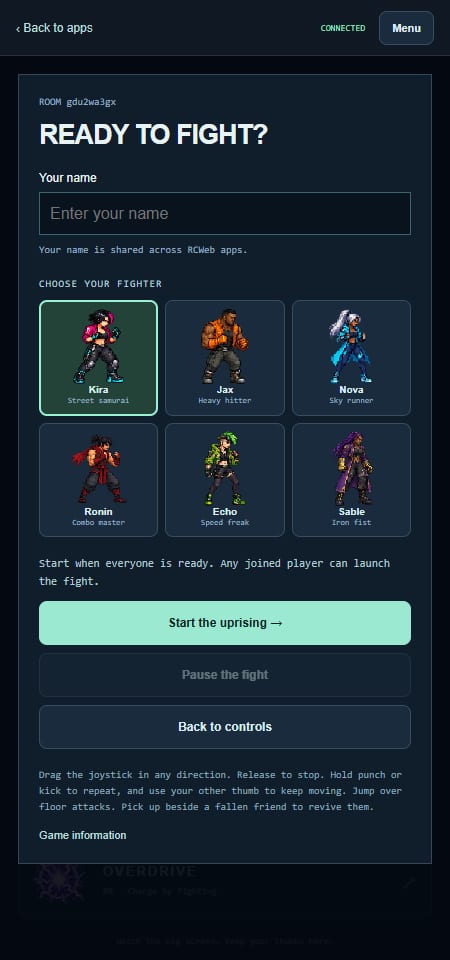
Joining friends who have already started? Scan their invitation or open BeatEmUp Control in the same room. You will take an available fighter and go straight to the controls. If all six places are full, the controller waits for a place to open. The person-plus icon on the main screen brings the invitation back.
Play on one device
- Computer: choose a character from Your fighter, then click Play on this keyboard on the opening screen. You can also press Enter outside the selector to join with your choice.
- Phone, tablet or touchscreen computer: choose Your fighter, then tap Play with touch controls. A draggable joystick and attack buttons appear below the game in portrait or landscape. Hold the joystick and an attack button together to move and fight. No keyboard or separate controller is needed.
Characters already taken by another player are marked Taken and cannot be selected.
Install Human Override
Open the game in the room you want to use, then install it for a home-screen or desktop shortcut that opens in its own app window.
- Chrome or Edge: use the browser's Install app icon or menu option.
- iPhone or iPad: open the browser's Share menu and choose Add to Home Screen. Enable Open as Web App if offered.
The installed game opens in the room you installed from and works in portrait or landscape. Keyboard, gamepad, touch and phone controllers work as usual. It needs a connection to the RCWeb server to play; installation does not download every district for offline use.
Installation requires a secure HTTPS address on phones and other devices. If the install option is missing, open your secure RCWeb address in a browser that supports installation. You can continue playing in the browser too.
Playing with a gamepad
Connect a standard Xbox or PlayStation controller to the device showing the game. Press and release a button to let the browser detect it. Use the left stick or D-pad to choose your fighter, then press A / Cross or Start / Options to join. The gamepad controls the same local fighter as the viewer's keyboard and touch controls; friends can still join on their phones.
- Left stick / D-pad: move.
- X / Square: punch. Hold to keep punching.
- B / Circle: kick. Hold to keep kicking.
- A / Cross: jump; confirm or advance a story page in menus.
- Y / Triangle: pick up a weapon or revive a teammate.
- RB / R1: Overdrive.
- Start / Options: pause or resume; start or continue from a menu.
Disconnecting stops gamepad input. Reconnect, release the controls, then continue with the same fighter. You can also carry on with the keyboard or touch controls. If the browser cannot access the controller or recognise its layout, the opening screen explains this. If a gamepad is not detected over a network address, open the viewer through HTTPS in a browser with gamepad support.
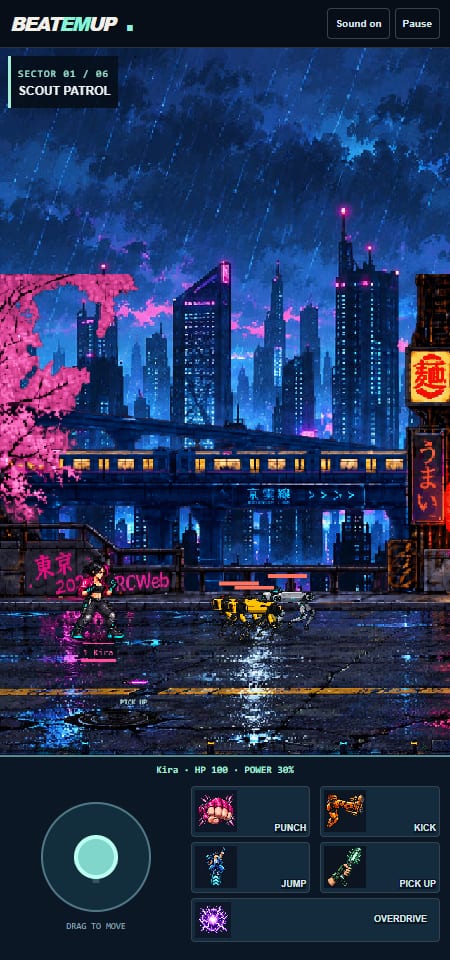
Get comfortable with the controls
Use your left thumb to drag the joystick. Release it to stop. Move up or down to line up with an enemy, then use your right thumb to attack.
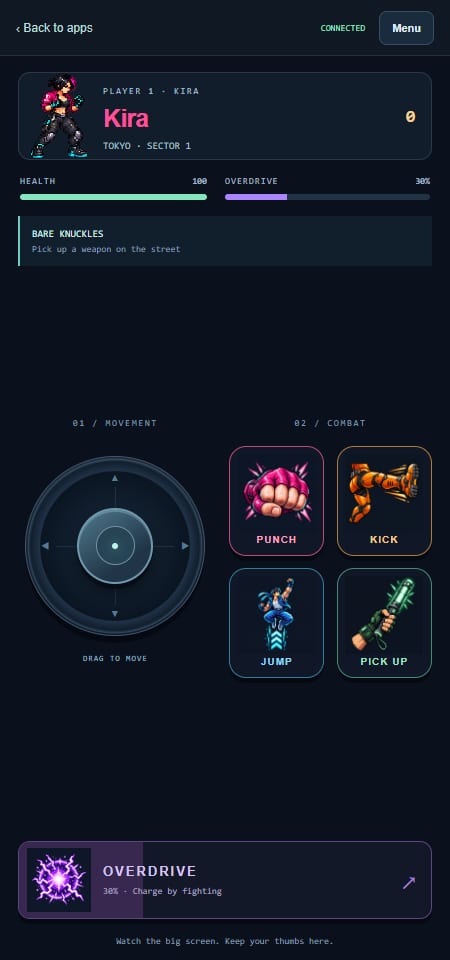
- Punch: a quick attack. Hold the button to keep throwing combinations.
- Kick: a stronger attack with more reach. Useful against guarding robots.
- Jump: leap over ground attacks. Punch or kick in the air for a flying attack.
- Pick up: collect a nearby weapon or help a fallen teammate.
- Overdrive: fighting fills your power meter. When it is ready, tap for a powerful attack around you.
Playing with a keyboard
- WASD or arrow keys: move.
- J or Z: punch.
- K or X: kick.
- Space: jump.
- E: pick up a weapon or revive a teammate.
- L or C: overdrive.
- P: pause or resume.
Weapons, health and extra chances
Walk close to a shock baton, plasma blade or steel pipe and press Pick up. Your fighter holds it and uses it when you Punch. Weapons have limited uses; the controller shows how many hits remain.
Watch your health bar and collect health pickups when you need them. Energy pickups help charge overdrive.
If you fall, a nearby friend can press Pick up to get you back up. Otherwise, you return after seven seconds if the team has a reserve revive left.
Where are the extra lives? Look at TEAM REVIVES in the bottom-right corner of the shared screen, below the character cards. This is a shared pool of automatic respawns. The team starts with three reserve revives per starting player. It is separate from each fighter's health bar.
Take back three districts
Fight through six encounters in each district. Smaller robots arrive first, followed by tougher enemies and a giant boss.
Move right when the street is clear. If you see Blocked! Destroy the robots first, finish the remaining enemies before advancing. Stay close to your crew so everyone can keep up.
- Tokyo — Unicorn Gundam: jump over ground slams and shockwaves; change lane to dodge its shots.
- New York — Punk Johnny Five: sidestep the track charge and keep clear of marked mines and incoming volleys.
- Shenzhen — Sentinel: destroy all eight tentacles separately, then attack the exposed core. Strike low claws during recovery and dodge the marked attacks.
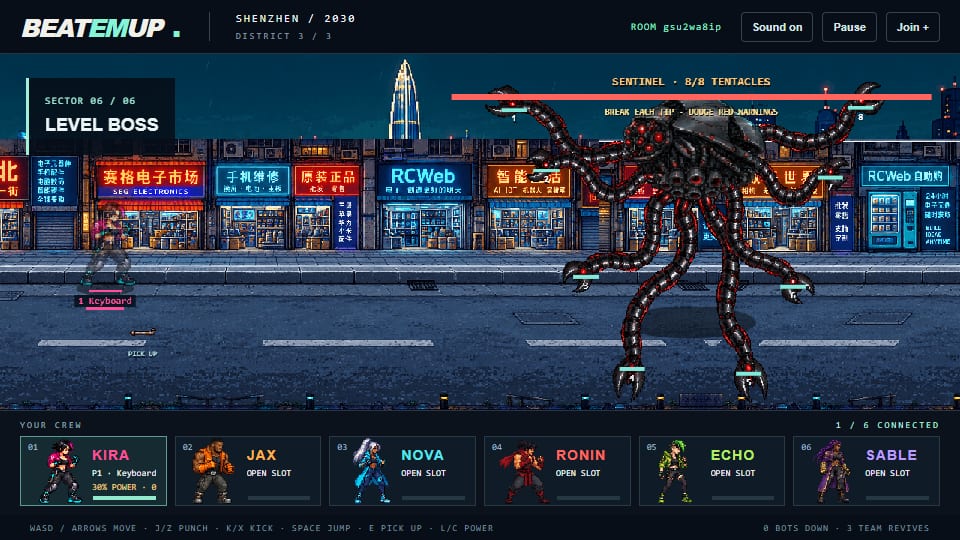
Watch for drones! They are fragile: one successful hit destroys them. Jump attacks reach higher, while ground attacks connect when a drone drops low. Move away from dive warnings and dropped bombs.
After each boss, the game celebrates the district's liberation. Continue when the crew is ready. Clear all three districts to see Game Complete! AI defeated!
Choose your fighter
- Kira: a balanced all-rounder and a good first choice.
- Jax: slower movement and heavy punches.
- Nova: a fast fighter in cyan.
- Ronin: strong attacks and a red scarf.
- Echo: the fastest runner.
- Sable: a powerful close-range fighter.
Sound, breaks and returning to play
Sound starts automatically when your browser allows it. If playback is blocked after opening or refreshing the viewer, your first click or tap anywhere unlocks sound, even on the loading screen. Playback begins once the game is ready. You can also press a key or tap the speaker icon. Tap the speaker again to mute. Your saved mute setting is respected. The intro song accompanies the attract loop and opening comic. The level theme plays in every district, switching to the boss theme for boss fights. The current track keeps playing through congratulations and game over.
Use the four-corner icon beside the speaker to enter or leave fullscreen. The icons have tooltips and accessible labels; the fullscreen button is disabled when your browser does not support it.
The first connected player is the crew captain. They can pause or resume from their controller's Menu. Any joined player can start a fresh game after a defeat or victory.
A quick controller refresh reconnects you to your fighter. Keep the controller visible while playing: closing it, switching away or losing the connection can release your place after a short grace period. Back to apps leaves immediately.
Refreshing the only viewer resets the game. Connected controllers return to the setup screen so the crew can start again. If another viewer is already hosting the game, an additional display follows that ongoing game.
Implementation and agent information
This section is for maintainers, testers and coding agents.
App structure and connections
- The main display app is beatemup; its phone controller is beatemup-c.
- App code uses vanilla ES5 JavaScript, HTML and conservative CSS. The viewer owns the game simulation; controllers send input over RCWeb messaging.
- Controller handoff runs on viewer connection and game start, retaining the room and skipping controllers already in the correct app. Preserve the controller's Back to apps navigation.
- Controller identity is kept in session storage; names use the shared rcwebName setting. Incomplete joins retry after 2.6 seconds.
- Missing heartbeats mark a player disconnected after three seconds. Disconnected slots are reserved for five more seconds. Explicit departures release them immediately.
- Additional viewers mirror the host and can take over. Reloading the only viewer creates a fresh lobby rather than restoring a checkpoint.
- The PWA manifest follows RCWeb's
webmanifest.jsontemplate. Its link is set after connection with the resolved room; the stable/beatemup/app ID avoids a separate installation for every room. Standalone display allows both orientations, with existing regular, maskable and Apple icons. - This online PWA uses normal browser caching and no service worker. Setup, live room state and district assets retain their existing request behavior. Refreshing loads current app code without a stale offline copy.
Loading, artwork and audio
Only the current district's game artwork loads. Shared fighter, weapon and effect images are reused; previous district images are released. Music loads when its cue is needed and sound is enabled. Story and victory art load when shown.
The attract loop is a presentation-only timeline in the graphics renderer. Its actors never occupy player slots or change the simulation. It reuses the current district's loaded sprites; a test-level override previews that selected district. Scene changes occur during opaque black holds, and starting play resets the demo clock.
The sprites, scenery and comic artwork were created with built-in ImageGen and optimized for delivery. The level and boss music uses supplied tracks optimized as stereo MP3s; the intro also uses supplied music. Combat effects use sourced CC0 audio. Robot names and designs are fictional arcade interpretations, with invented abilities and no manufacturer affiliation.
The lean display mode reduces effects and frame rate for weaker devices. Add lean=1 to the viewer's query parameters to select it manually.
Test starts
Set level on the viewer URL, then join and start normally:
- level=1: Tokyo. level=1b: its boss.
- level=2: New York. level=2b: its boss.
- level=3: Shenzhen. level=3b: its boss.
Use a question mark before the first query parameter, or an ampersand after an existing room parameter. These starts skip the comic and replay from the same selection. Remove level for the normal opening. Controllers need only the matching room.
Reference material for agents
Read the repository instructions and RCWeb app guide before editing. Keep player instructions above this section, use headings and lists instead of tables, and keep screenshots local and compressed.