Clock
Clock turns any RCWeb display into a room clock that can be changed from a phone or tablet.
Screenshot
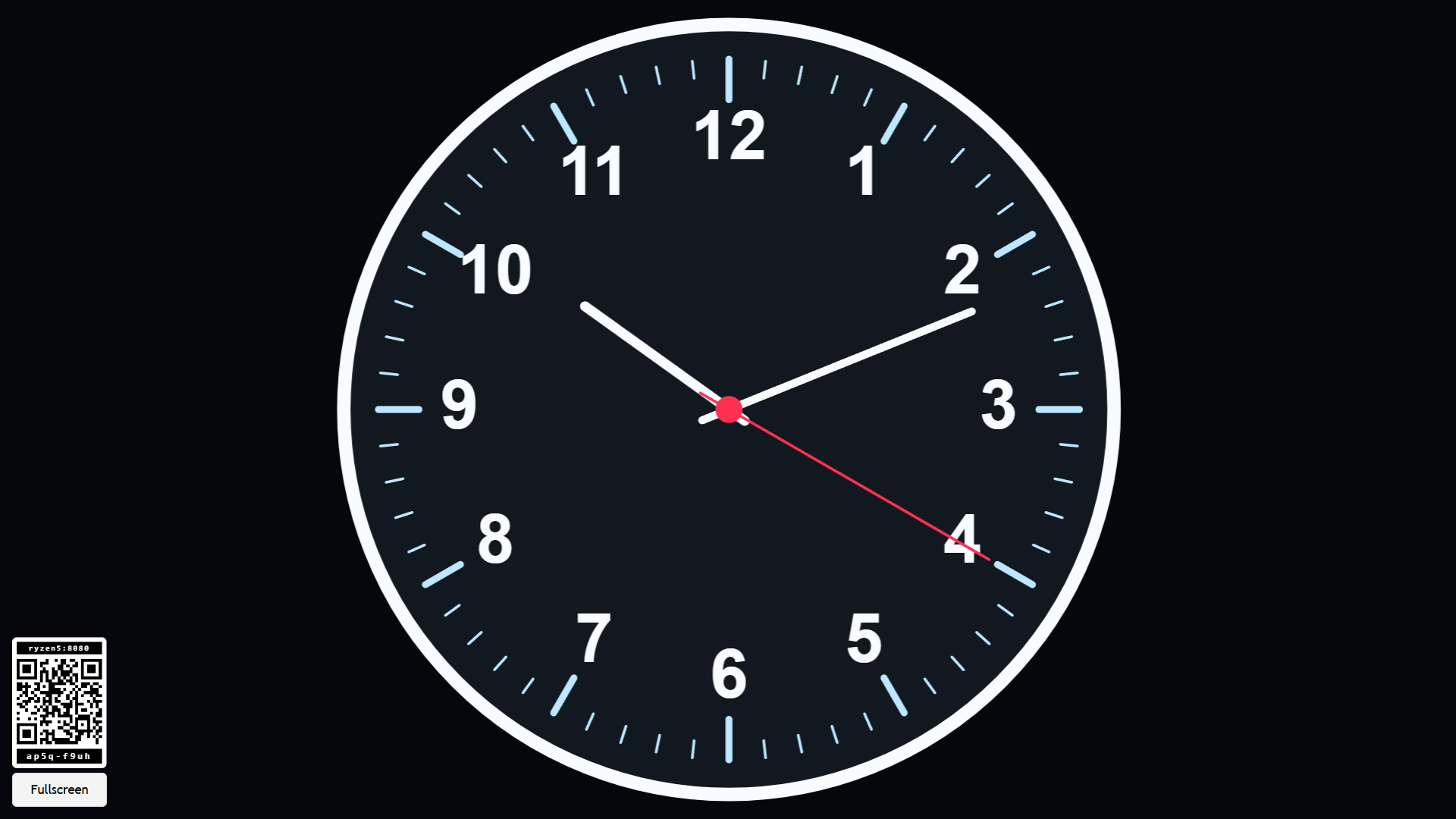
Open the viewer at /clock/?r=<room> on the screen you want everyone to see. The display shows only the active clock, a QR code for the controls, and a fullscreen button. Scan the QR code or open /clock-c/?r=<room> on a phone or tablet to choose the clock and adjust its settings.
The semi-transparent QR panel stays in the bottom-right corner. Move the pointer, touch the display or press a key to reveal the fullscreen icon at the top right. Select it to enter or exit fullscreen; it fades after a few seconds of inactivity.
Features
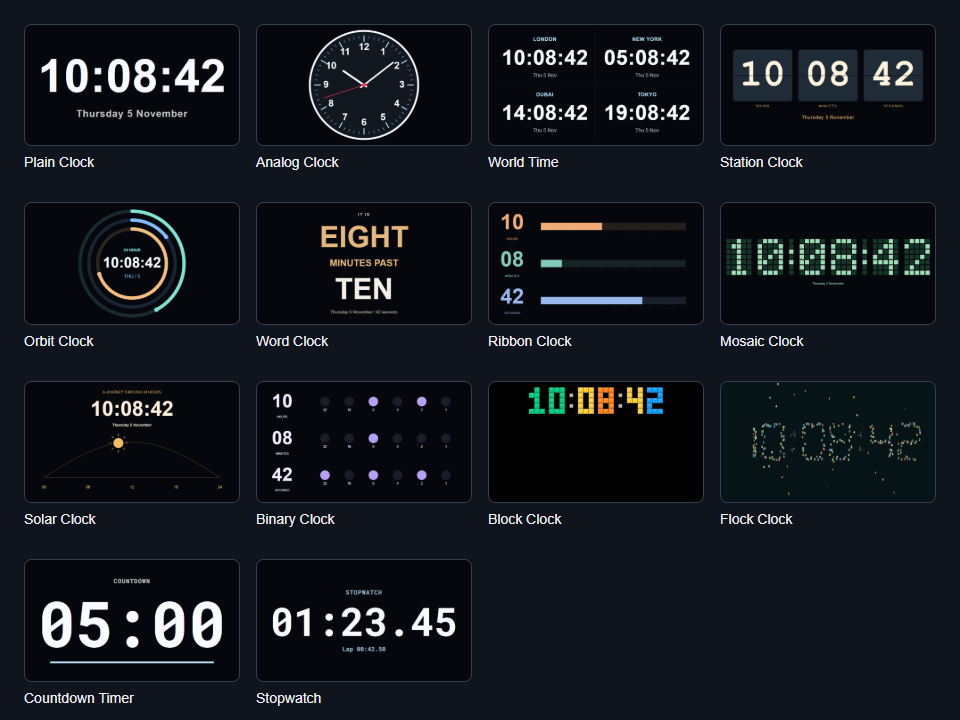
- Plain Clock: a clean digital clock with the date shown by default, plus configurable font, size, colour, spacing and position. The date can be hidden from the controls.
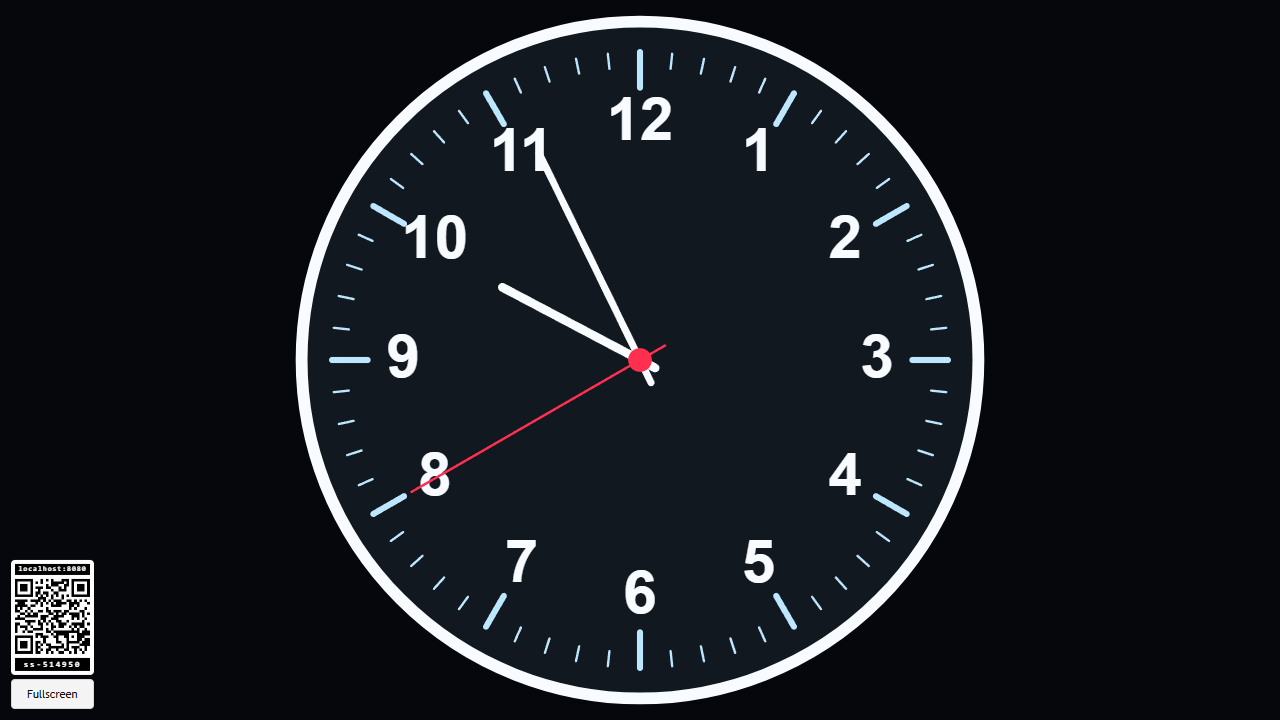
- Analog Clock: a round clock face with configurable size, colours, ticks, numbers, hand widths, second hand, and optional digital time.
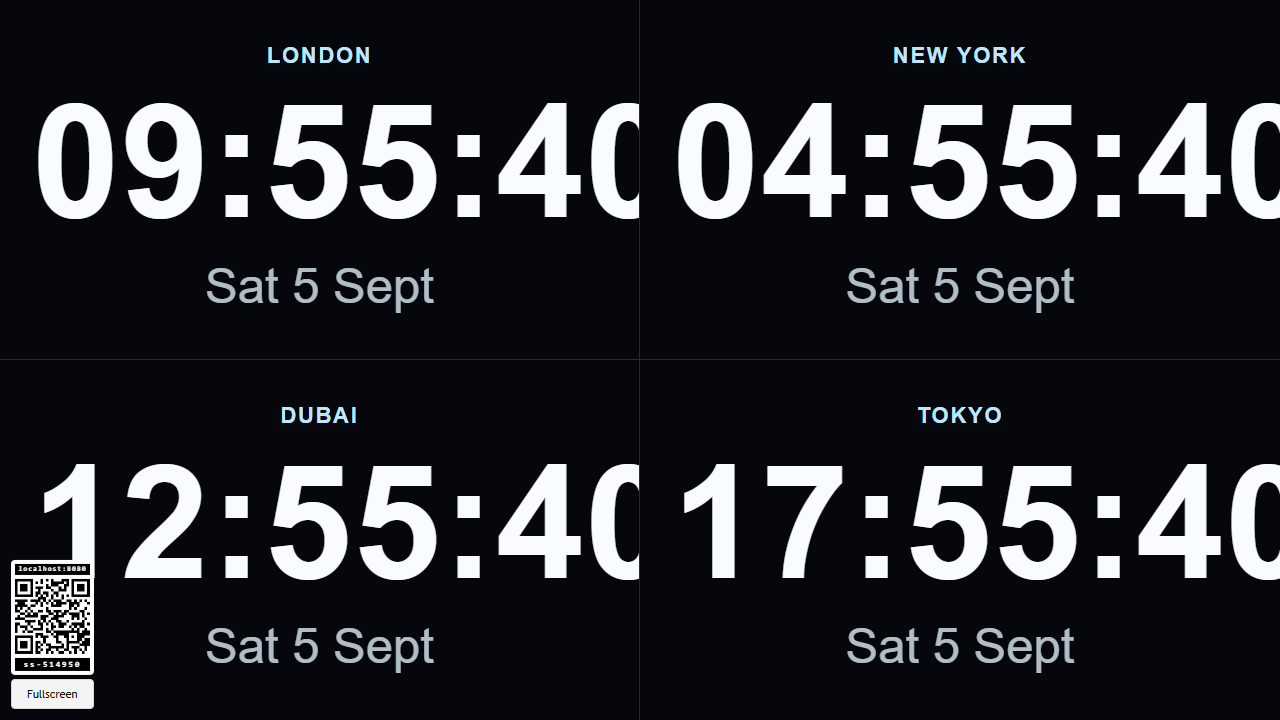
- World Time: compare four cities in a landscape grid or four full-width portrait rows, with local dates and daylight-saving adjustments.
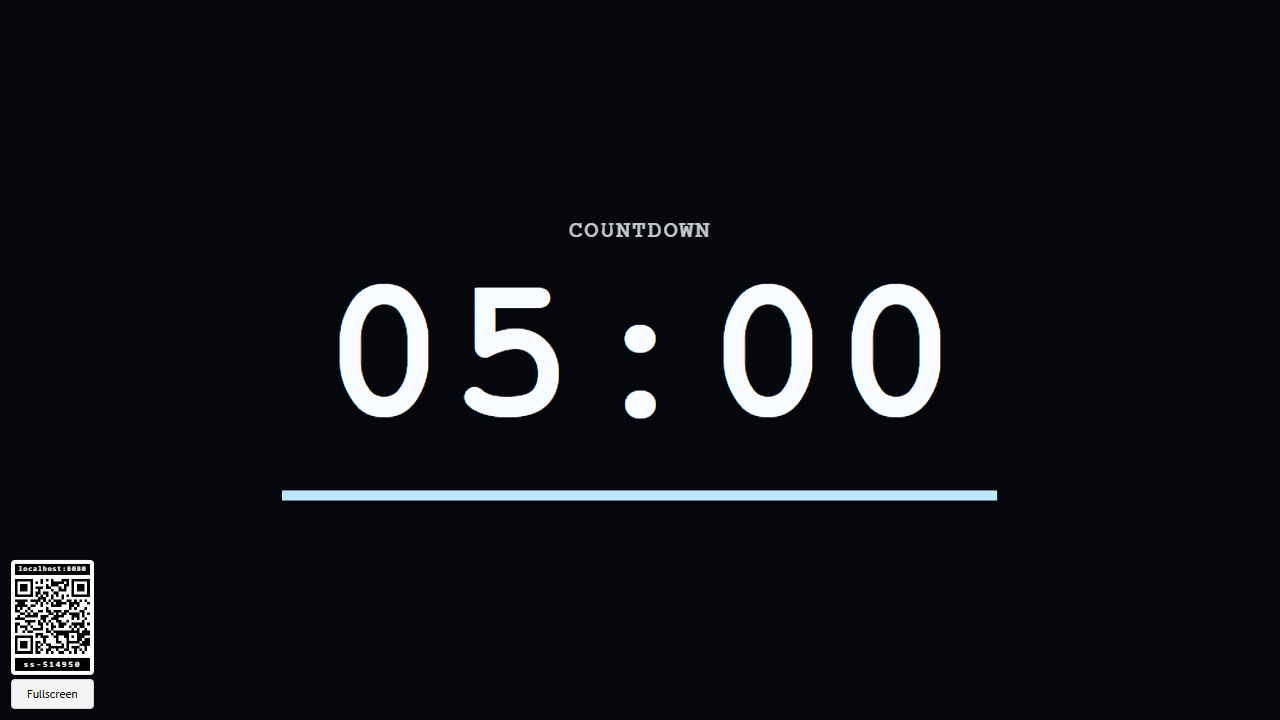
- Countdown Timer: a configurable countdown display with duration, start, pause, reset, label, font, colour, and progress options.
- Stopwatch: a configurable elapsed-time display with start, pause, lap, reset, font, colour, and hundredths options.
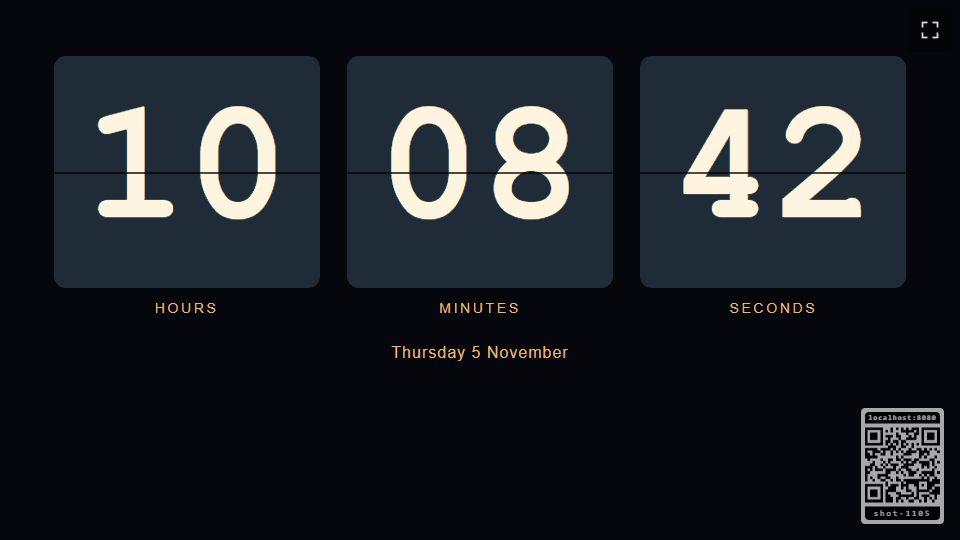
- Station Clock: large split-panel digits inspired by railway departure boards, with custom panel, digit and label colours and an optional date.
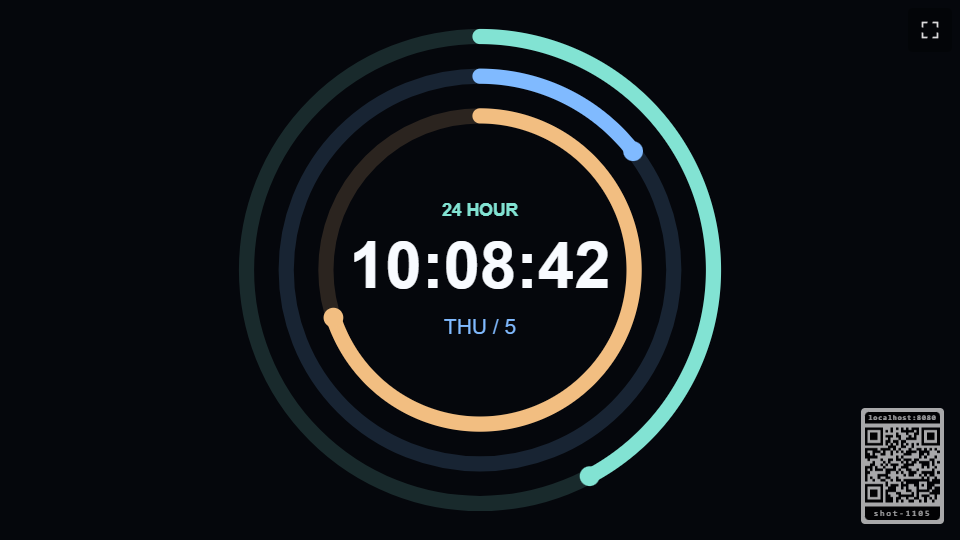
- Orbit Clock: coloured rings show progress through the hour, minute and second cycles around a digital time display. Choose separate ring colours and 12- or 24-hour time.
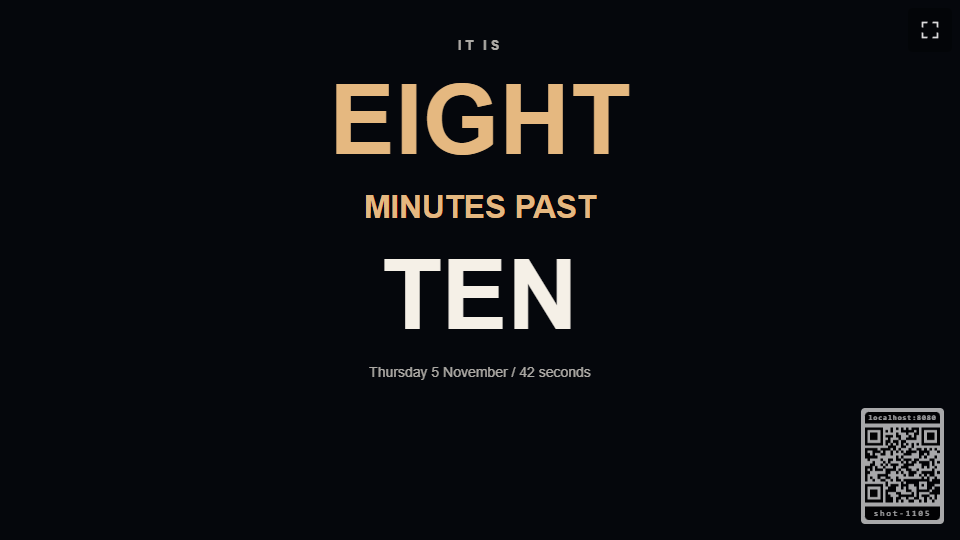
- Word Clock: the exact time written in English, such as “twenty-three minutes past ten” or “quarter to eleven”, with an optional date and seconds count.
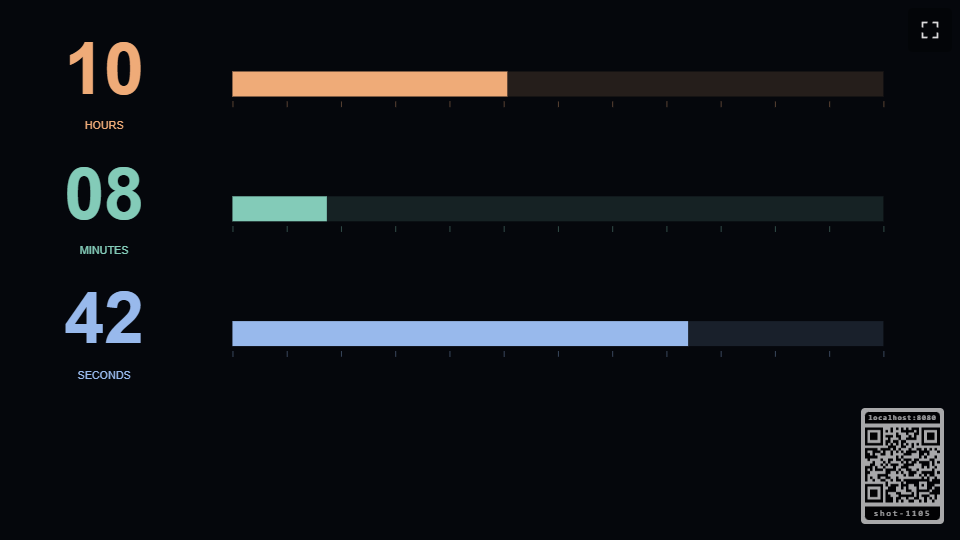
- Ribbon Clock: large hour, minute and second values sit beside coloured progress tracks. Each track fills as its time unit passes; choose a different colour for each.
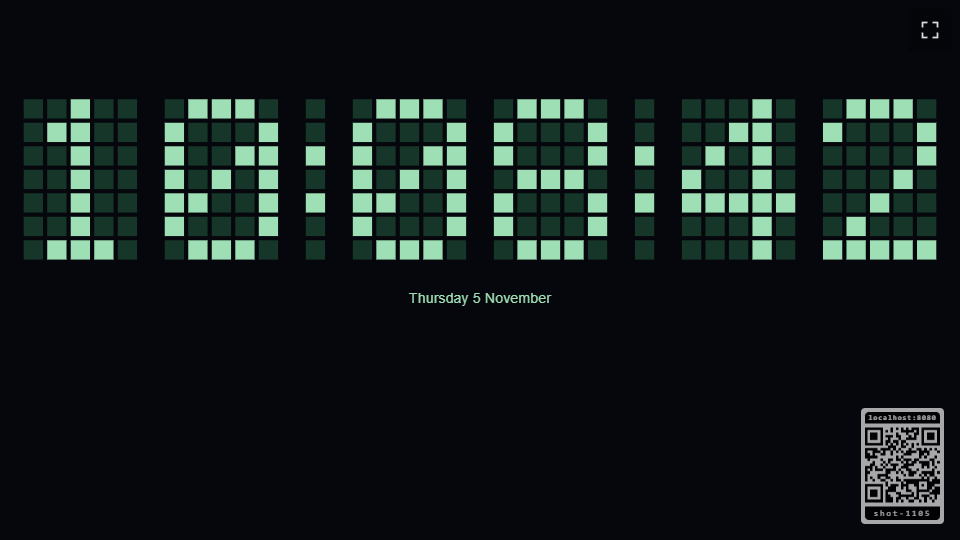
- Mosaic Clock: a wall of square tiles forms the time in large pixel-style digits, with an accompanying date. Choose lit and unlit tile colours.
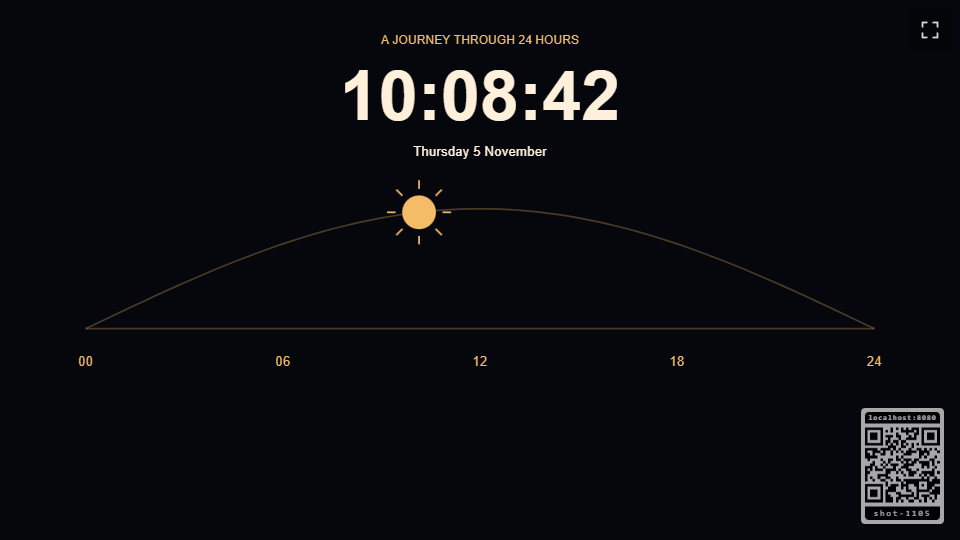
- Solar Clock: a sun marker follows a decorative arc representing progress through a fixed midnight-to-midnight day, below a digital time and date.
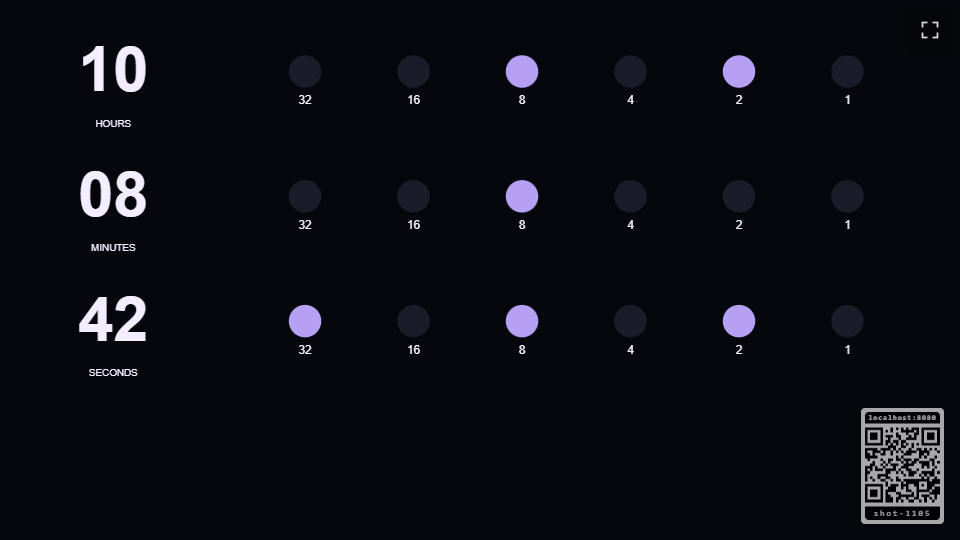
- Binary Clock: lit dots encode hours, minutes and seconds using the labelled values 32, 16, 8, 4, 2 and 1. Add the lit values to read each unit; ordinary digits provide a quick reference.
- Block Clock: the original falling block clock, where changed digits drop and collect at the bottom using physics.
- Flock Clock: the original flock clock, where animated character markers settle into readable digit shapes.
Fits Your Screen
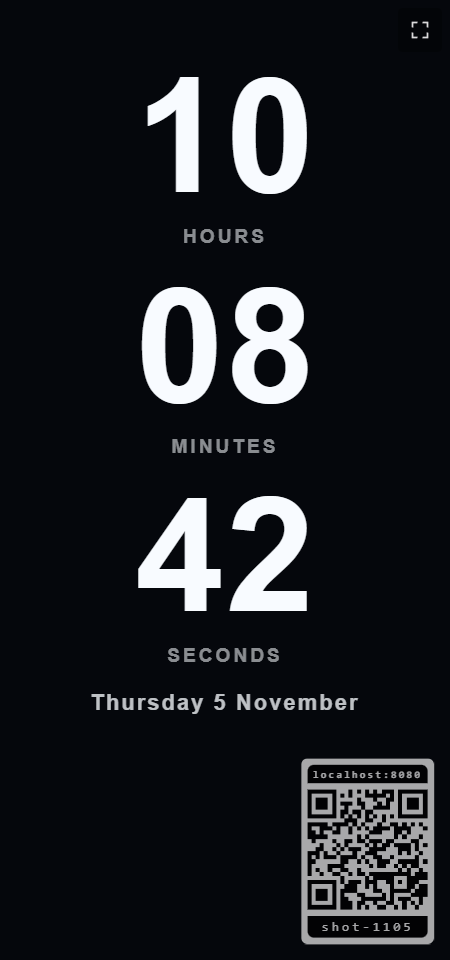
Clock adapts to landscape and portrait displays. Plain Clock and the timers stack labelled time units on tall screens; Station Clock stacks its panels. Text sizes fit the complete time, including long timers and optional dates. Increase the size slider to use more of the available area without cropping the digits. The controller shows a small preview of every style.
Countdown Timer and Stopwatch have their own Timers & stopwatch section below the time-of-day clocks in the controller.
Saved Settings
The viewer saves the selected clock and its settings in the browser. If the main Clock app is closed and reopened on the same display browser, it restores the last selected clock, colours, sizing, and other options automatically.
Best Use
Use Clock for shared displays, wall screens, venue dashboards, classrooms, workshops, or any room where the clock should be visible without exposing controls on the main screen.
Screenshots
Automatic Rotation
Use Automatic rotation above the previews to cycle through your selection. Choose Change every: 30 seconds, 1, 2, 5, 10 or 30 minutes, or 1 hour. Rotation starts switched off.
The checkbox in each preview's top-right corner includes or excludes that style. Keep at least one selected; Include all restores the full selection. Next moves to the next selected style in gallery order, wrapping back to the start.
Tapping a preview shows it immediately without changing its loop checkbox. When rotation is on, that style stays for the chosen period before the loop continues. Editing the loop does not interrupt the current display. The display saves the rotation setting, period and selection, and shares them with other controllers.
Countdown Timer and Stopwatch are excluded from the loop and have no loop checkbox. Selecting either pauses rotation; selecting a clock resumes it if Automatic rotation is still enabled.