Clock Controls
Clock Controls is the phone-oriented controller for the shared /clock/ display.
Screenshot
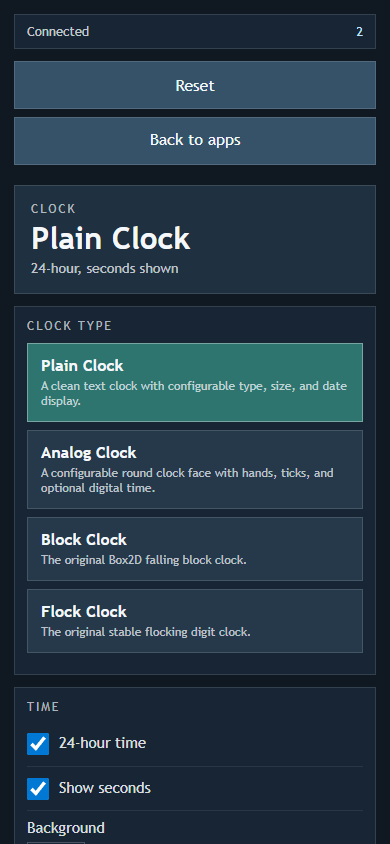
Open /clock/?r=<room> on the display first, then open /clock-c/?r=<room> on a phone or tablet in the same room. You can also scan the QR code shown on the Clock display.
Features
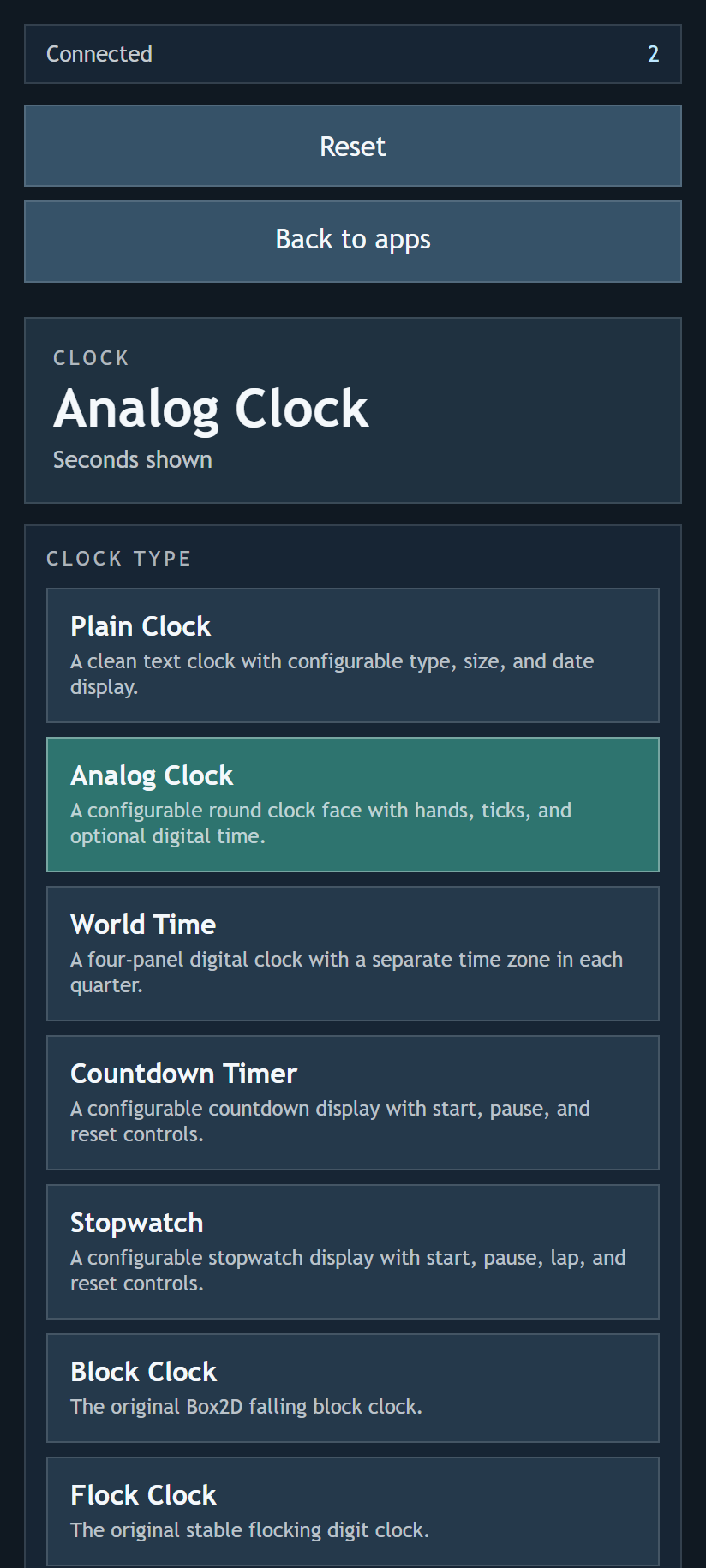
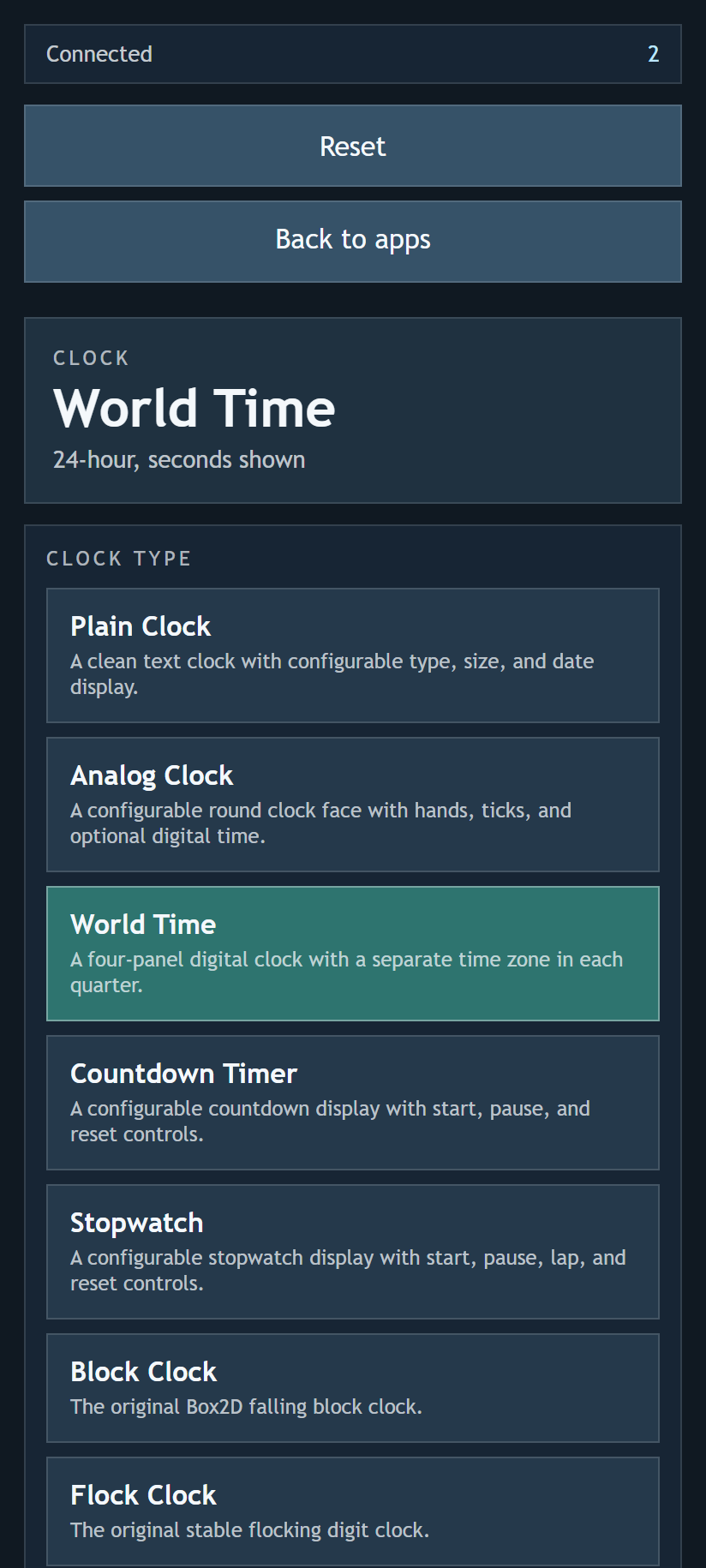
- Choose from twelve clock preview cards, including Ribbon, Mosaic, Solar and Binary Clock.
- Find Countdown Timer and Stopwatch in their separate Timers & stopwatch section below the clocks.
- Adjust the settings available for the selected clock.
- Change shared display options such as background colour and whether seconds are shown.
- Reset the display back to the default clock settings.
- Check connection status and the number of clients in the room.
- Choose a clock from the compact mode cards; the selected card is highlighted with a check mark. Use switches, sliders and colour controls to adjust the display.
- Use Back to apps to return to the app list in the same room.
Settings
Plain Clock includes font, weight, text size, text colour, date, spacing, position, 12/24-hour time, seconds, and background options.
Plain Clock shows the date by default, matching its preview. Use Show date to hide or restore it.
Analog Clock includes size, face colour, border colour, tick colour, number colour, hand colours, centre colour, number visibility, minute ticks, second hand, optional digital time, number size, hand width, seconds, and background options.
World Time includes four independently selectable location panels, font, weight, text size, text colour, city colour, date colour, date visibility, spacing, 12/24-hour time, seconds, and background options.
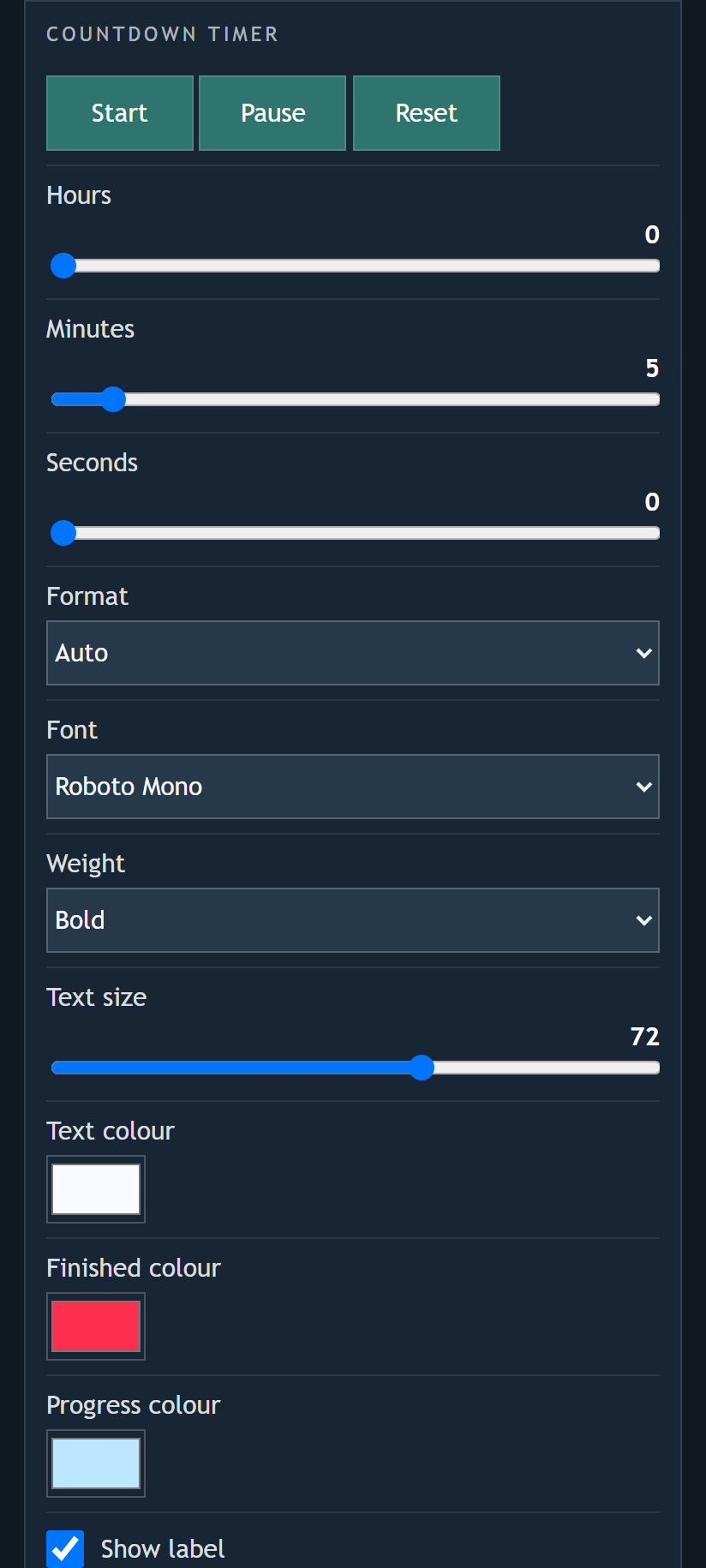
Countdown Timer includes start, pause, reset, hours, minutes, seconds, display format, font, weight, text size, colours, label, progress bar, and background options.
Stopwatch includes start, pause, lap, reset, display format, font, weight, text size, colours, label, hundredths, lap display, and background options.
Station Clock includes panel, digit and label colours, an optional date, 12/24-hour time and seconds. Its panels stack automatically on portrait screens.
Orbit Clock includes separate hour, minute and second ring colours, time text colour, 12/24-hour time and seconds visibility.
Word Clock includes hour and minute text colours, an optional date and seconds count. The main phrase uses twelve-hour English time and updates every minute.
Ribbon Clock has separate colours for its hour, minute and second tracks. Mosaic Clock has lit and unlit tile colours. Solar Clock has sun/path and text colours. Binary Clock has lit-dot and label colours; add the numbers under the lit dots to read each time unit. All four support 12/24-hour time, seconds visibility and background colour.
Text size controls scale the fitted clock within the available screen area. Long text and timer values stay visible; portrait layouts adapt automatically.
Block Clock and Flock Clock use their original display behaviour, so the controls focus on selecting them rather than changing their internal animation.
Saved Settings
Changes are sent to the Clock display and saved there. When the main Clock app is relaunched later in the same display browser, the last selected clock and settings are restored automatically.
Screenshots
Automatic Rotation
Use Automatic rotation above the previews to cycle through your selection. Choose Change every: 30 seconds, 1, 2, 5, 10 or 30 minutes, or 1 hour. Rotation starts switched off.
The checkbox in each preview's top-right corner includes or excludes that style. Keep at least one selected; Include all restores the full selection. Next moves to the next selected style in gallery order, wrapping back to the start.
Tapping a preview shows it immediately without changing its loop checkbox. When rotation is on, that style stays for the chosen period before the loop continues. Editing the loop does not interrupt the current display. The display saves the rotation setting, period and selection, and shares them with other controllers.
Countdown Timer and Stopwatch are excluded from the loop and have no loop checkbox. Selecting either pauses rotation; selecting a clock resumes it if Automatic rotation is still enabled.