RCWeb Fluid Simulation
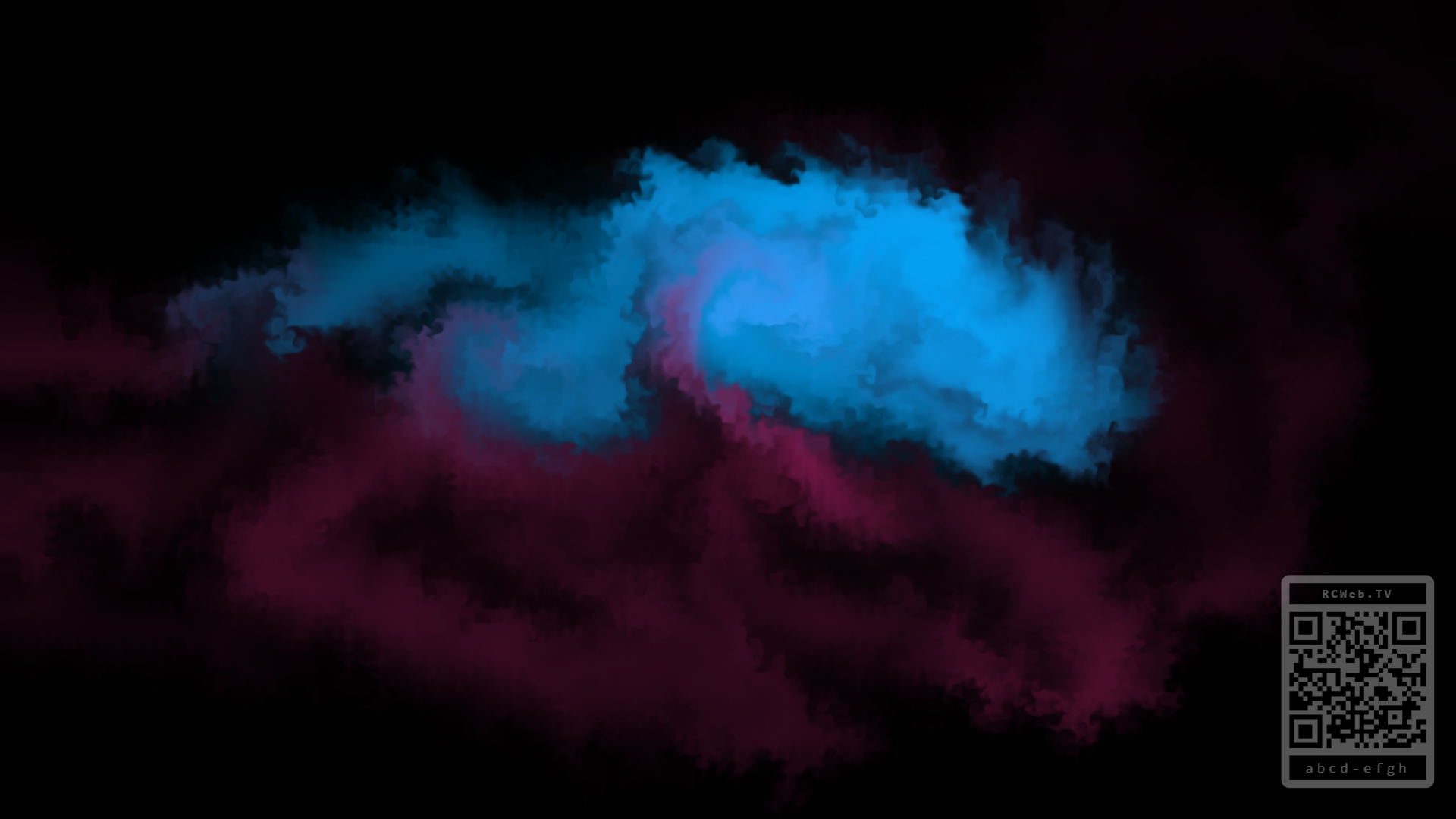
The RCWeb Fluid Simulation app (app/fluid-sim) is a shared display for collaborative, relaxing color swirls. It pairs with app/fluid-sim-c, where many users can touch and drag to inject their own color into a WebGL fluid canvas.

Screenshot

What it does
- WebGL Fluid Solver: A GPU velocity and dye simulation creates curls, pressure-driven motion, and soft paint-on-water blooms.
- Momentum: Finger velocity is transferred into the display, so fast strokes keep drifting and slow strokes bloom gently.
- Multi-User Color Trails: Every controller has its own color, letting several people create distinct swirls on the same screen.
- Shared Display Flow: The display shows a QR code to open the controller for the current room.
- Ambient Mode: When the display starts, and again after 30 seconds without controller input, it adds slow automatic swirls so the screen never feels empty.
- OLED-Friendly Presentation: The base display is true black, with saturated dye colors rendered on top.
How to use it
- Open
/fluid-sim/ on the main display.
- Scan the QR code from one or more phones to open
/fluid-sim-c/ in the same room.
- Pick a color on each controller and drag on the touch pad.
- Use slow gestures for calm ink-like blooms, or faster gestures for energetic streaks and curls.
The centered information box appears on startup and returns after 30 seconds of inactivity. It fades when a real controller stroke is received. The QR code remains in the bottom-right corner and fades to 33% opacity after the first user stroke.
How it works
The controller sends normalized touch segments to fluidSim.addStroke using rc.sendFunctionCall. The display converts those segments into WebGL splats, disturbs a GPU velocity field, solves pressure to keep the motion fluid-like, and advects dye through the field over time. The graphics pipeline is inspired by Pavel Dobryakov's MIT-licensed WebGL Fluid Simulation.
Rendering pipeline
- Velocity Buffer: Stores two-channel motion in floating-point WebGL textures.
- Dye Buffer: Stores the visible color field separately from velocity.
- Splat Pass: Adds controller input into both the velocity and dye buffers.
- Curl and Vorticity Passes: Reintroduce swirling detail so motion feels fluid rather than linear.
- Divergence and Pressure Solve: Projects velocity toward incompressible fluid-like motion.
- Velocity Stabilization: Soft-compresses runaway velocity so the simulation does not accelerate into instability over time.
- Advection: Moves both dye and velocity through the current flow field.
- Display Shader: Renders the dye on a black background while preserving the selected controller hue.
Network API
The display exposes these functions globally under fluidSim:
fluidSim.addStroke(player, startX, startY, endX, endY, color, strength): Adds a normalized stroke segment from a controller.
fluidSim.setAimCursor(client, x, y, color, active): Shows or hides a transient remote cursor.
fluidSim.broadcastSize(): Sends the display aspect ratio to connected controllers.
fluidSim.clearCanvas(): Clears simulation buffers. This is retained as an internal API, although the controller no longer exposes a clear button.
Notes for maintainers
- This app intentionally has no external JavaScript dependency.
- The display requires WebGL with floating-point or half-float render targets. If unsupported, it shows a fallback message.
- Brush size is controlled primarily by
splatRadius in webgl-fluid.js.
- Stability is controlled by velocity dissipation, curl strength, pressure iterations, and the
stabilizeVelocity shader pass.
- Ambient motion is generated locally by the display and is not broadcast to controllers.